Click To Chat
Customer Service Rating by LivePerson
Navigation

» Search

» My Account
» Current Sales
» Clearance Center

Shop By Printer


Translate

Français/French Deutsch/German Italiano/Italian Português/Portuguese Español/Spanish Russian

Newsletter

Join Our Newsletter
for Sales and Coupons
Email Address


Other Customers Are
Buying These Products

16 OZ (473 ml) BOTTLE WITH CAP (NOT NALGENE -...
Price: $1.75
16 OZ (473 ml) BOTTLE WITH CAP (NOT NALGENE -...
Price: $1.75
BLACK BREAK IN TOOL
Price: $1.25
Resetting the Epson Cartridge Chip
 
Methods for Resetting Epson Cartridge Chips

 
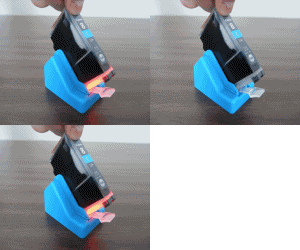
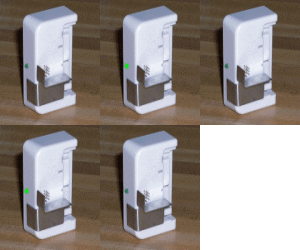
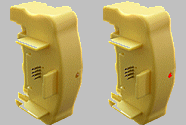
1.    Universal Chip Resetter - Inksupply chip resetters are self contained units, with an internal battery and small pins that contact the cartridge chip. When held against the chip for 6 seconds, it will put the chip back to its electronic FULL setting. This device requires that cartridges be removed from the printer. Not ideal for use with Continuous Flow Systems. Great for use with Refilling.
 
For Epson Desktop Printers
UNIVERSAL CHIP RESETTER FOR EPSON DESKTOP PRINTERS WITH CHIPPED CARTRIDGES
SK168
UNIVERSAL CHIP RESETTER FOR EPSON DESKTOP PRINTERS WITH CHIPPED CARTRIDGES
More Info

This Chip Resetter Is For Epson Desktop Printers. It Will Reset All Of Them, But It Will Not Reset Wide Format Epson Printer Cartridges. For The Wide Format Printers, Use SK188.
Our Price: $6.95
Add SK168 To Shopping Cart
 
For Epson Wide Format Printers
Wide Format Chip Reseter for Epson 4000, 4800, 7600, 7800, 9600, 9800, 10000, 10600 Printers.  Also works on Wide Format Funnel Fill Carts.
SK188
WIDE FORMAT CHIP RESETER FOR EPSON 4000, 4800, 7600, 7800, 9600, 9800, 10000, 10600 PRINTERS. ALSO WORKS ON WIDE FORMAT FUNNEL FILL CARTS.
More Info

This Chip Resetter Is For Epson Wide Format Printers. It Will Reset All Of Them, But It Will Not Reset Desktop Epson Printer Cartridges. For The Desktop Printers, Use SK168.
Our Price: $16.95
Add SK188 To Shopping Cart
 
For Canon Original Cartridges
Chip Resetter for OEM Canon CLI8 and PGI5 cartridges.
SK155
CHIP RESETTER FOR OEM CANON CLI8 AND PGI5 CARTRIDGES.
More Info

Chip Resetter For OEM Canon CLI8 And PGI5 Cartridges. Will Not Reset Aftermarket Chips.
Our Price: $15.95
Add SK155 To Shopping Cart
 
2.    Auto Reset Chips - Auto Reset Chips will reset the ink level to full automatically. Depending on which chip version is being used, the reset will occur when the printer power is turned on or when a cleaning cycle is completed. On the newer, most recent autoreset chips, the reset to full will not occur unless the ink level is below 20%. Auto Reset Chips are now used exclusively in the MIS Continuous Flow Systems. This type of chip is not recommended if you are refilling cartridges, only for Continuous Flow Systems.
 
3.    F-16 Chip Resetter - This is our chip resetter that was used before the Auto Reset Chips were available. It works without having to lift up the cartridges. Works on MAC's and PC's and it will reset the printer even if the Red "out of ink" light is on. It is meant for use with Continuous Flow Systems only, not for refilling. The F-16 is no longer in production.
 
4.    Swedish Reset - This is the manual method of resetting a cartridge chip. It requires that you have another good cartridge. The data from the good cartridge chip is transferred to the empty cartridge. This method is good for those doing refilling. Read the full procedure below.
 
To learn more about each of these methods, click on the headings.
 
Swedish Reset Method -

An avid Epson user in Sweden has discovered how to reset the Intelligent Chip on the Epson printers. The procedure appeared on this website. What this means to all of us who own an Epson 680, 777, 870, 875, 1270, 1280, 1290 or 2000P printer is that we can now refill and reuse our empty cartridges. Following this procedure and refilling your cartridge is not illegal, nor will it void your warranty. But, you must understand, it is not an approved Epson procedure and they will not smile on you if you tell them you have been doing this.

 
The Procedure -
1.    When the black or color ink out light flashes or is on steady, the indicated cartridge is low on ink. Make sure you have your "Designated Full" cartridge on hand. Either follow the on-screen help or press the orange button, visible when you lift the printer cover. When pressed, the print head will move to the cartridge removal position and the power light will flash. You must have a set of new Epson cartridges to use for resetting the chip. These are what we refer to as the "Designated Full" cartridges. You do not print with these, the are only for resetting the chip. Mark DF on these cartridges. They are not included as part of our refill kit.
2.    Flip up the clamp and remove the cartridge. Then, after removing the pull tab on your "Designated Full" cartridge, put it in the printer and close the clamp.

If you have a continuous flow system, you will have to reinstall the original cartridge clamps so the cartridges will make contact with the chips. If you are using the modified cartridge clamps with your CFS, put piece of folded paper under the color clamp so it will press the color cartridge down tight. Without clamps you will not be able to proceed.

Next, push the Orange Button and the print head will move to the right and perform a cleaning cycle. The red light should go off. If it does not go off, make sure the cartridges are seated all the way down so the printer makes contact with the chips. If there is still a red light, turn off your printer, disconnect the printer cable, turn the printer back on an try pushing the orange button again. When the carts move right, check to see that they are seated down all the way. Push the orange button again. When the cartridges return to the right, turn off the printer power and reinstall your printer cable. Turn the power back on and the red light should go off. If it is still on, give Epson a call, there may be something wrong with your printer.

(Note: If you have used your "Designated Full" cartridge a number of times, it may not show as totally full when you run the status monitor test.)

3.    If you get the red light off, do not turn off the printer power. Also do not start printing yet, you need to preserve the ink in your "Designated Full" cartridge. You will use this same cartridge every time you perform this Reset Procedure. Eventually, after about 20 times, you will have to get a new cartridge to run this procedure. Keep your "Designated Full" in a safe place and don't print with it.
4.    If you are not using a continuous flow system (CFS), take your empty cartridge to your bench and refill it following our Chipped Cartridge Refill Instructions. Let it rest for an hour or more (overnight is better) in a perfectly level position. Use a match book or something about 3/16 inch thick to prop up the back end.

If you are using a continuous flow system (CFS) then you do not need to refill your cartridges. Just keep them at the same level as the bottles while the DF carts are in the printer.

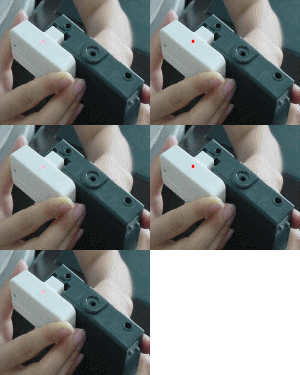
5.    If you have a CFS or after your refilled cartridge is aged, return to your printer. At this point the printer power should be on and the cartridges should be parked in their right hand position. Find the small white lever under the black cartridge holder, see photos. Using a small screw driver or pencil, move the lever towards the front of the printer until it is below the surface. Now slide the cartridges to the left hand cartridge removal position using your hand.


6.    Remove your "Designated Full" cartridge and install the CFS or refilled cartridges. Make sure the clamps are down tight or that you have fresh felt pads on the sides of the CFS cartridges. The cartridge must not rise up, not even 1/32 of an inch. This next step is very important... Slide the cartridges all the way to the right, using your hand, so they are in their original parked position. If you don't do this, your printer may become damaged when it starts to print. Don't worry about the lever, it can stay down. Do not turn off the power or push the orange button again.

Now, tell your printer to make a color print of any type (purge4.tif or purge6.tif is fine). When the first print is complete, the data from the new chips is transferred to the old chips. After this first print the old chips will read full just like the chips on the DF cartridges did.

7.    That's it,  your printer is now ready to use. The ink monitoring system will report that the cartridge is full or at the same level as your "Designated Full" cartridge. Print something, if necessary run a nozzle check. If nozzles are missing run a cleaning cycle to correct. Remember, don't run more than 3 consecutive cleaning cycles. Then print a multi-color print and run 3 more if needed.
8.    Review our recorded data if you would like to see how much ink is used during the reset procedure.

Tips from the original chip reset website -


Lever location on 777 and 780 printers

More Tips -
To see all of the tips out there, visit the original chip reset website and view the Guest Book.